Showing posts with label Android. Show all posts

Sunday, May 26, 2013

Swipe with Tabs

Preface
Easy navigation and presentation are 2 main things that can make your software more user friendly.  To achieve this we can combine TabHost widget and ViewPager LayoutManager together.

Scenario
The UI is consist of 3 tabs and 3 pages. Selecting each tab will automatically swipe to the corresponding page in the ViewPager. The other way around,  swiping each page will result in the selection of the matching tab. Here I'm not going to discuss how to create tabs you can find so many tutorials on the net. The focus of this article is on how to use these 2 useful widgets together and how they can interact with each other.
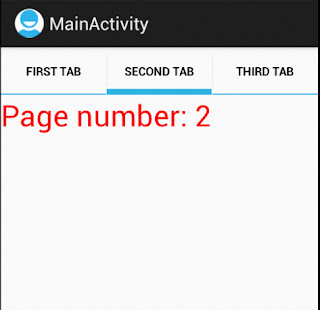
swiped on page 2. Tab 2 is selected


Solution
Now, lets look at some code and see how we can implement the scenario. Here we have a MainActivity class. Apart from creating the necessary views and setting their properties in the overridden onCreate method pay attention to the 2 interfaces that this class has implemented. These are the listeners responsible to listening for the appropriate events that we are interested on. 

 public class MainActivity extends Activity implements OnTabChangeListener, OnPageChangeListener{  
      private TabHost host;  
      private ViewPager pager;  
   @Override  
   public void onCreate(Bundle savedInstanceState) {  
     super.onCreate(savedInstanceState);  
     setContentView(R.layout.activity_main);  
     host = (TabHost)findViewById(android.R.id.tabhost);  
     pager = (ViewPager) findViewById(R.id.pager);  
     
     host.setup();  
     TabSpec spec = host.newTabSpec("tab1");  
     spec.setContent(R.id.tab1);  
     spec.setIndicator("First tab");   
     host.addTab(spec);  
     
     spec = host.newTabSpec("tab2");  
     spec.setContent(R.id.tab2);  
     spec.setIndicator("Second tab");  
     host.addTab(spec);  
     
     spec = host.newTabSpec("tab3");  
     spec.setContent(R.id.tab3);  
     spec.setIndicator("Third tab");  
     host.addTab(spec);  
     
     pager.setAdapter(new MyPagerAdapter(this));  
     pager.setOnPageChangeListener(this);  
     host.setOnTabChangedListener(this);  
   }  
      @Override  
      public void onTabChanged(String tabId){  
           int pageNumber = 0;  
           if(tabId.equals("tab1")){  
                pageNumber = 0;  
           } else if(tabId.equals("tab2")){  
                pageNumber = 1;  
           } else{  
                pageNumber = 2;  
           }  
           pager.setCurrentItem(pageNumber);  
      }  
      @Override  
      public void onPageSelected(int pageNumber) {  
           host.setCurrentTab(pageNumber);  
      }  

If you select a tab or swipe a page you can get notified by these listeners methods.As you can see in the above snippet in each method we are instructing the other one to show the appropriate tab or page. For example, when a tab is selected the tag string we assigned to its TabSpec is passed to the onTabChanged method. By comparing the strings we can find out which tab was selected and accordingly set the corresponding page and instructing the pager to set its current item by setCurrentItem which accepts the page number.

The content of our view is read from the file below. If you take a look you can see that each TabSpec is constructed using a FrameLayout

 <?xml version="1.0" encoding="utf-8"?>  
 <TabHost xmlns:android="http://schemas.android.com/apk/res/android"  
   android:id="@android:id/tabhost"  
   android:layout_width="match_parent"  
   android:layout_height="match_parent" >  
   <LinearLayout  
     android:layout_width="match_parent"  
     android:layout_height="wrap_content"  
     android:orientation="vertical" >  
     <TabWidget  
       android:id="@android:id/tabs"  
       android:layout_width="match_parent"  
       android:layout_height="wrap_content" >  
     </TabWidget>  
     <FrameLayout  
       android:id="@android:id/tabcontent"  
       android:layout_width="match_parent"  
       android:layout_height="match_parent" >  
           <FrameLayout  
             android:id="@+id/tab1"  
             android:layout_width="match_parent"  
             android:layout_height="wrap_content"  
             android:visibility="gone" />  
           <FrameLayout  
             android:id="@+id/tab2"  
             android:layout_width="match_parent"  
             android:layout_height="wrap_content"  
             android:visibility="gone" />  
           <FrameLayout  
             android:id="@+id/tab3"  
             android:layout_width="match_parent"  
             android:layout_height="wrap_content"  
             android:visibility="gone" />  
     </FrameLayout>  
     <android.support.v4.view.ViewPager  
       xmlns:android="http://schemas.android.com/apk/res/android"  
       android:id="@+id/pager"  
       android:layout_width="match_parent"  
       android:layout_height="wrap_content"/>  
   </LinearLayout>  
 </TabHost>  

Finally, here is our PageAdapter feeding our ViewPager. for the sake of simplicity each page is consisted of only one TextView.

 public class MyPagerAdapter extends PagerAdapter {  
      private Context ctx;  
      public MyPagerAdapter(Context ctx){  
           this.ctx = ctx;  
      }  
      @Override  
      public Object instantiateItem(ViewGroup container, int position) {  
           TextView tView = new TextView(ctx);  
           position++;  
           tView.setText("Page number: " + position);  
           tView.setTextColor(Color.RED);  
           tView.setTextSize(20);  
           container.addView(tView);  
           return tView;  
      }  
      @Override  
      public int getCount() {  
           return 3;  
      }  
      @Override  
      public boolean isViewFromObject(View view, Object object) {  
           return (view == object);  
      }  
 }  

Friday, January 25, 2013

ViewPager, Fragment and one oversight

Scenario
There is a  fragment which inflates a view consisting of some UI widgets (few TextViews, Spinners and etc). A ViewPager will load multiple instances of this fragment with different data using FragmentPagerAdapter. As you can see in the first snippet below the data is received through an intent from another activity (first part in red). Then iterating over the data we are creating new fragments, passing as an argument the data we want to populate each fragment with (second part in red). For example, consider the data as a list of all tasks assigned to you by your manager. It consists of subject shown in a TextView, status of the task shown in a Spinner and whether its finalized or not shown with a CheckBox.

Problem
ViewPager loads first fragment with the help of  the assigned adapter. The data is loaded into the UI views, so far so good. Now, if we try to swipe to the next fragment we notice that the data either is not populated into the second fragment's UI or it is partially populated. 
public class MyActivity extends FragmentActivity {  
           @Override  
           public void onCreate(Bundle savedInstanceState) {  
                super.onCreate(savedInstanceState);  
                setContentView(R.layout.activity_my_layout);  
                ViewPager pager = (ViewPager) findViewById(R.id.dataPager);  
                List<MyData> dataList = (List<MyData>) getIntent()  
                          .getSerializableExtra("DATA");  
                List<Fragment> fragments = new ArrayList<Fragment>();  
                int i = 0;  
                if (dataList != null) {  
                     for (MyData data: dataList) {  
                          MyFragment myFragment = new MyFragment();  
                          Bundle args = new Bundle();  
                          args.putSerializable("MYDATA", data);  
                          myFragment.setArguments(args);  
                          fragments.add(myFragment);  
                     }  
                MyPagerAdapter adapter = new MyPagerAdapter(getSupportFragmentManager(), fragments);  
                pager.setAdapter(adapter);  
           }  
           private class MyPagerAdapter extends FragmentPagerAdapter {  
                private List<Fragment> myFrags;  
                public MyPagerAdapter(FragmentManager manager,  
                          List<Fragment> frags) {  
                     super(manager);  
                     this.myFrags = frags;  
                }  
                @Override  
                public Fragment getItem(int paramInt) {  
                     return myFrags.get(paramInt);  
                }  
                @Override  
                public int getCount() {  
                     return myFrags.size();  
                }  
           }  
      }  
 }  

Solution
In the onCreateView of the fragment we are inflating a view for our fragment's UI. The problem arises when we try to find our UI widgets from findViewById of the activity instead of the inflated view of the current fragment. You can clearly see this in the snippet below. In our example the code in green is the correct way of finding a view.

Public class MyFragment extends Fragment{
      . . .  
      private View rootView;  
      . . .  
      @Override  
      public View onCreateView(LayoutInflater inflater, ViewGroup container, Bundle savedInstanceState) {  
           rootView = inflater.inflate(R.layout.myLayout, container, false);   
           return rootView;  
      }  
      @Override  
      public void onActivityCreated(Bundle savedInstanceState) {  
           super.onActivityCreated(savedInstanceState);  
           . . .  
           ((TextView) getActivity().findViewById(R.id.my_Text_view))  
                               .setText("MY_TEXT");  
           ((TextView) rootView.findViewById(R.id.my_Text_view))  
                               .setText("MY_TEXT");  
           . . .  
      }   
           . . .  


Tuesday, December 25, 2012

Storing objects in an Android UI View

Preface
Its really useful to relate data with UI presentation of that data. By doing this one can identify the data that needs to be operated upon. In Android we can store data in a View by using View's setTag().


Scenario
Consider you have a requirement to show a list of purchase policies for a product. In each row of that list we have a Checkbox and one TextView. CheckBox shows if the policy has been applied on the product or not and TextView shows the actual text of the policy. Now, when a user selects or deselects a CheckBox we want to refresh and recalculate the total price of that purchase. For this recalculation we must know which policy is selected or deselected.
We have to somehow associate some data about each policy to each CheckBox. By doing this we can find out which policy is selected.

Problem
Associating data with its UI representation.

Solution  
In our design we have incorporated a ListView . List's data is coming from an adapter. In the getView of that adapter we are associating an object to each CheckBox. If you look at our inflated layout "purchase_policy_list_row" in onClick of our checBox we have a method to be invoked. When the method in called we can cast the passed View and retrieve our corresponding data.

Lets look at a sample code below. Here we also used view holder pattern. This is for making Listview's more efficient You can find more about it on the web.  Please notice the line in red. There we are creating a DTO object and setting it to a CheckBox. In our case we are keeping and Id and a type in our DTO.

 public class PurchasePolicyListAdapter extends BaseAdapter {  
      ...  
      @Override  
      public View getView(int position, View convertView, ViewGroup parent) {  
           View view = null;  
           //View holder pattern  
           if (convertView == null) {  
                LayoutInflater inflater = (LayoutInflater) context  
                          .getSystemService(Context.LAYOUT_INFLATER_SERVICE);  
                view = inflater.inflate(R.purchase_policy_list_row, parent, false);  
                ViewHolder holder = new ViewHolder();  
                holder.policyPr = (CheckBox) view.findViewById(R.id.policyPr);  
                holder.policyTitle = (TextView) view.findViewById(R.id.policyTitle);  
                view.setTag(holder);  
           } else{  
                view = convertView;  
           }  
           ((ViewHolder) view.getTag()).policyPr.setTag(createTagObject(position));  
           ViewHolder holder = (ViewHolder) view.getTag();  
           holder.policyTitle.setText(policies.get(position).getPolicyText());  
           return view;  
      }  
      private PolicyDTO createTagObject(int position) {  
           PolicyDTO dto = new PolicyDTO(policies.get(position).getType(), policies.get(position).getPurchasePolicy().getId());  
           return dto;  
      }  
      //Class for view holder pattern  
      static class ViewHolder {  
           public CheckBox policyPr;  
           public TextView policyTitle;  
      }  
 }  

In R.purchase.order_policy_list_row, the CheckBox has android:onClick="policySelected" . This will trigger policySelected() in the PurchaseActivity class (Android will do this call automatically). When the method is called we are casting the given View to a CheckBox. Then retrieving our DTO by getTag() method.

 public class PurchaseActivity extends Activity{  
           ...  
           public void policySelected(View view){  
                final CheckBox policyInt = (CheckBox) view;  
                DialogInterface.OnClickListener dialogClickListener = new DialogInterface.OnClickListener() {  
                     @Override  
                     public void onClick(DialogInterface dialog, int which) {  
                          switch (which){  
                          case DialogInterface.BUTTON_POSITIVE:  
                               ...  
                               if(policyInt.isChecked()){  
                                    ...  
                                    PolicyDTO dto = (PolicyDTO)policyInt.getTag();  
                                    ...  
                               }  
                               ...  
                               break;  
                          case DialogInterface.BUTTON_NEGATIVE:  
                               ...  
                               break;  
                          }  
                     }  
                };  
                DialogInterface.OnCancelListener cancelListener = new DialogInterface.OnCancelListener(){  
                     @Override  
                     public void onCancel(DialogInterface dialog) {  
                          ...  
                     }  
                };  
                AlertDialog.Builder builder = new AlertDialog.Builder(this);  
                AlertDialog dialog = builder.setMessage(R.string.message).setPositiveButton(R.string.confirm, dialogClickListener)  
                          .setNegativeButton(R.string.cancel, dialogClickListener)  
                          .setCustomTitle(R.string.title)  
                          .setOnCancelListener(cancelListener)  
                          .show();  
           }  
           ...  
 }  

Here we are showing a dialog to a user with positive and negative buttons. You can skip this dialog part and focus only on the red lines of code. As you can see if the user clicks on the positive button then we are retrieving the attached PolicyDTO. In the negative button you can just cancel the user operation. You might notice that we have a CancelListener as well. This is because if user decides to cancel or move away from the dialog is as if he decides to negate the operation.

Sunday, October 28, 2012

Android Service test - callback method not firing

Preface
If you want to execute a long running operation in your program Service is a fine choice. You might ask why not using AsyncTask? The answer to it is simple. AsyncTask is for short operations (few seconds probably) and Service is for longer or more CPU intensive jobs. For better and easier integration, it’s better to test each unit of your program. Android JUnit provides set of classes for writing unit tests. ServiceTestCase is a class by which you can unit test your service class.

Scenario
Consider we have to send some data for a complex calculation to a remote server and wait for the response. We decided to use Service. In our example when user initiates the calculation our service start in the background and send the data to the server. Once the result is back it will update the application local database. Lets have a unit test for our Service.

Problem
Our service is an IntentService and it receives a serviceCallback (ResultReciever). The problem is, before the callback method (onReceiveResult) is called the teardown method of the our unit test terminates the test.

Solution
A solution to this problem could be somehow forcing the main thread to wait for the result of the callBack service method to return. For doing this we can make use of CountDownLatch. This class helps us to pause the thread until one or more operations finishes. Below is the ServiceTestCase utilizing the aforementioned mechanism.

await method of CountDownLatch cause the current thread to wait. When the response is back,  countDown method of CountDownLatch counts down and releases all the waiting threads.


 import java.util.HashMap;  
 import java.util.Map;  
 import java.util.Properties;  
 import java.util.concurrent.CountDownLatch;  
 import android.content.Intent;  
 import android.os.Bundle;  
 import android.os.ResultReceiver;  
 import android.test.ServiceTestCase;  
 public class CalculationServiceTest extends ServiceTestCase<CalculationService>{  
      public CalculationServiceTest() {  
           super(CalculationService.class);  
      }  
      public void testCalculation() throws InterruptedException{  
           //our synchronization aid   
           CountDownLatch signal = new CountDownLatch(1);  
           //passing object for evaluating the result of our service  
           Map<String, String> result = new HashMap<String, String>();  
           //Creating a new thread which is responsible for running our Service  
           new Thread(new WorkerRunnable( signal, result)).start();  
           //casuing the current to wait  
           signal.await();  
           assertEquals(CommunicationConstants.SERVICE_RESULT_SUCCESS, (String)result.get("result"));  
      }  
      class WorkerRunnable implements Runnable {  
           private  CountDownLatch doneSignal;  
           private Map<String, String> result;  
           public WorkerRunnable(CountDownLatch cdl, Map<String, String> result){  
                this.doneSignal = cdl;  
                this.result = result;  
           }  
           @Override  
           public void run() {  
                Intent startServiceIntent = new Intent();  
                startServiceIntent.putExtra(CalculationService.SERVICE_TYPE,  
                          Constant.CALCULATE);  
                ResultReceiver serviceCallback = new ResultReceiver(null) {  
                     @Override  
                     protected void onReceiveResult(int resultCode, Bundle resultData) {  
                          result.put("result", String.valueOf(resultCode));  
                          doneSignal.countDown();  
                     }  
                };  
                //setting a callback for our service  
                startServiceIntent.putExtra(CalculationService.SERVICE_CALLBACK,  
                          serviceCallback);  
                startServiceIntent.setClass(getContext(), CalculationService.class);  
                startService(startServiceIntent);  
           }  
      }  
 }  

Wednesday, October 3, 2012

Android-memory leak on screen rotation

A practical approach

Preface
Lifecycle of your application is managed by the Android itself. Sometimes you dont have control over when and how the system interrupts your application. Like when screen rotation happens, a call is received, low memory condition or etc. Consequently, you have to proactively handle these occurrences. In this article I want to discuss how you can avoid memory leak when screen orientation happens. All the snippets of code are from my earlier post Location Finder.

Scenario
As you know, long running operations must not be executed on the UI thread. That’s why we have AsyncTask. In my older post Location Finder 1, I have an AsyncTask for querying data from Google Places. Constructor of the RequestHandler class accepts the activity itself. This is because I need to have Context for loading resources and the activity as a call back mechanism to update the UI in the main thread. By passing this reference the Android is not able to garbage collect this activity when screen rotation happens (In case of screen rotation the activity is destroyed and created again) our RequestHandler which is an AsyncTask have a reference to the activity so it wont get garbage collected.

1. There are some design changes since the date of the post.

Possible Approach
Now, lets look at an approach that avoids memory leak. We define 2 methods in our RequestHandler (AsyncTask) as detach and attach. These 2 methods have the responsibility of setting the reference of the activity to null (detaching) and setting back the reference (attaching). When should we detach the activity? We can detach it in the onStop() method as below. You might ask why not detaching in onDestroy() method? Because the system might sometimes kill your app without calling onDestroy(). You can look at the whole code at this address.

Here are part of the codes from each class involved.

GMapActivity: Is the activity class from which the AsyncTask is executed.
TaskComplete: Is a call back interface which our GMapActivity implements.
RequestHandler: Is the AsyncTask responsible for our long running operation.

GMapActivity class:
                                                  .
                                                  .
                                                  .
protected void onStop() {
        //Always call the super first
        super.onStop();
        //This is our AsyncTask detaching.
        if(requestHandler != null){
            requestHandler.detach();
        }
        //This is another class which like our AsyncTask has received a reference of our activity as well.
        //Same mechanism applies here
        if(itemizedoverlay != null){
            itemizedoverlay.detach();
        }
        //you can forget about this line for this example
        locationManager.removeUpdates(this);
        // We dismiss any ProgressDialog. Failing to do so will result in memory leak as well
       // since we have passed the activity to this dialog in onCreate().
        if(queryProgressBar != null){
            queryProgressBar.dismiss();
        }
}
                                                  .
                                                  .
                                                  .
TaskComplete interface:

public interface TaskComplete <T> {
    public void onComplete(T t);
    public void updateProgress(int progress);
}

RequestHandler class:
                                                  .
                                                  .
                                                  .
    //Class level private fields
   //Implemented interface reference
    private TaskComplete <List<OverlayItem>> callBack;
    //Forget about this line for this example
    private String selectedRadius;
    //Forget about this line for this example
    private String pointOfInterest;
   //Context needed for loading resources. No need to worry about this in this example
    private Context context;

public RequestHandler(TaskComplete <List<OverlayItem>> taskComplete, String selectedRadius, String pointOfInterest) {
        this.callBack = taskComplete;
        this.context = ((Activity)callBack).getApplicationContext();
        this.selectedRadius = selectedRadius;
        this.pointOfInterest = pointOfInterest;
    }

     public void detach() {
          callBack = null;
     }

     public void attach(TaskComplete <List<OverlayItem>> taskComplete) {
         this.callBack = taskComplete;
     }

                                                  .
                                                  .
                                                  .
Although we could have defined our task as an inner class I've decided to make it separate. Beware non-static inner classes have an implicit reference to the enclosing class. As a consequence, this reference might prevent the activity from being garbage collected causing memory leak.

Oh, We have detached the activity how about attaching it back. Ok, We want to attach the activity back to the AsyncTask. We said that current activity will be destroyed and recreated again. Before This happens we have to keep a reference to our RequestHandler(AsyncTask). We achieve this by creating a new State class and overriding onRetainNonConfigurationInstance() method in our Activity class. This method returns an object. We return a new instance of State. In this class we put our RequestHandler(AsyncTask) and any other detached objects. This method is called between onStop() and onDestroy(). In onStop() we already detached the activity and now are ready to returning the State of our application.

 public Object onRetainNonConfigurationInstance() {   
        State state = null;
        if(requestHandler != null && itemizedoverlay != null){
            state = new State(requestHandler, itemizedoverlay, currentPositionOvrItem);
        }
        return state;
    }

When onCreate() is called by the system again after the new activity has been created we have to attach back our AsyncTask. You can follow part of the code below.

public void onCreate(Bundle savedInstanceState) {
                                                 .
                                                 .
                                                 .
//The data returned by this method is accessible in onCreate() and onStart() methods.
        if(getLastNonConfigurationInstance() != null){
            ((State) getLastNonConfigurationInstance()).getRequestHandler().attach(this);
            requestHandler = ((State) getLastNonConfigurationInstance()).getRequestHandler();
            //Forget about the lines below for this article
            ((State) getLastNonConfigurationInstance()).getItemizedOverlay().attach(this);
            itemizedoverlay = ((State) getLastNonConfigurationInstance())
                                          .getItemizedOverlay();
           currentPositionOvrItem = ((State)getLastNonConfigurationInstance())
                                          .getCurrentPositionOvrItem();
            redrawOverlayItems();
        }
                                                .
                                                .
                                                .
}

By taking this approach you can avoid memory leaks and also preserve the state of your application while screen rotation happens.

Monday, September 24, 2012

Automating build process of an android project using ant

If you have developed your Android project using eclipse you might have noticed that there isn't any ant build.xml file in the project directory. That's because the android plugin itself handles all the necessary tasks. 
In case you want to automate your build process by using a custom build file what should you do? First lets discuss a scenario. Consider you have developed an application and you want to release it for testing. Now you want to create a .CMD file and provide some switches for the testers to do pretty much everything by themselves. For example, updating the code from a version control, building, cleaning and installing on the phone or emulator. By doing this you pretty much have automated everything.

Lets have a look at the 1 possible path which updates the code to the latest version and installs it on the phone attached to the PC via USB connector. We name our command file dist.cmd and it has a switch "-install".
   
    dist.cmd -install

    The steps taken automatically are:

    1. uninstall the app from the phone
    2. updating the code to the latest version
    3. cleaning the bin and gen folders
    4. compiling the code
    5. install fresh copy on the phone

With the help of this command you can have the latest code installed on a phone for testing.
    
Now the steps

You can execute the following command in order to create a new android project from command line.
 * Before executing the commands first navigate to the tools directory of your SDK.   
 * Add the platform-tools as well as the tools directories to your PATH (environment variable).
    
android create project --target 1 --name vahidApp --path ./vahidAppProject --activity myActivity --package org.vahid.android

target: id of the android platform library you are building against
name: name of the project
path: location of the project
activity: name of the default activity
package: your package namespace
   
After successful execution of the command one directory will be created (your project directory) in the current folder. Go to the newly created project folder and copy the following files to your own project.

    ant.properties : define key.store, key.alias
    build.xml : add few more ant targets (read later below)
    local.properties : defines address of the SDK
   
We are going to create 2 more files.

    dist.properties: defines address of the ant (android needs Ant version 1.8 or later. If you, for any  reason need to have older versions of Ant on you computer and can not change the ANT_HOME and PATH then, you can have your older versions and add the address of the new one in this property file)
    distribution.cmd: define all the commands and the available options. The commands will find the address of the ant from dist.properties.
   
If you open build.xml you will see that this file imports the android-sdk actual build file. How does it know where is the location of the sdk? well, from local.properties.

Now, you can override or add additional targets after the import tag. For example, we want to clean, update the code to the latest version and create a fresh .apk file and install it on the phone. This can be done by the following ant target.

First uninstall is called which removes the app from the phone. Remember you have to define the package address of your app. Its defined in your manifest.xml. Then cleans the bin and gen directories and calls our custom target "updateProject" which update the code to the latest version from version control and finally, calls "release"from  imported android build file. These sequence of ant calls will create project's .apk file and finally installs it on the phone.

Project's ant build file (added custom targets)

    <target name="uninstall">
        <exec executable="adb">
            <arg value="-d"/>
            <arg value="uninstall"/>
            <arg value="com.sg.distribution"/>
        </exec>
    </target>

    <target name="install" depends="uninstall, create">
         <exec executable="adb">
            <arg value="-d"/>
            <arg value="install"/>
            <arg value="./bin/${ant.project.name}-release.apk"/>
        </exec>
    </target>

    <target name="create" depends="clean">
        <antcall target="updateProject"/>
        <antcall target="release"/>
    </target>

 <target name="updateProject">      
        <echo message="Updating project...."/>
        <exec executable="svn.exe" failonerror="true">
          <arg line="update"/>
        </exec>      
    </target>

By adding these 2 ant targets we can make sure our .apk file is build upon the latest code changes. In second updateProject target we use CollabNet's svn.exe (add it to the path environment variable) and passing a parameter to update the code. Of course, our example uses Subversion as the version control.

dist.cmd command file

@echo off
REM --Begin reading path of ant from a property file
FOR /F "eol=; tokens=2,2 delims==" %%i IN ('findstr "antPath" dist.properties') DO (
set antPath=%%i)
REM --END
SET ANT_HOME=%antPath%
:start
if "%1"=="-install" goto install

:install
call %antPath%\bin\ant install
goto done

:done
shift
if ""%1""=="""" goto endOfFile
goto start
:endOfFile

This file read the ant path from the dist.properties file and set ANT_HOME for just the current session to the path read and execute each ant based on the read path. These code is part of the actual file.

Wednesday, September 12, 2012

SOAP for Android

As you know Android does not support SOAP. The reason for that might be, SOAP is complicated on mobile clients. Generating code from WSDL is cumbersome and finally communicating in SOAP means more network traffic which is something to consider in hand-held devices. As a result using REST with JSON is a sensible approach. Because, its flexible in data type returns. JSON is lightweight and simple to parse. JSON is the preferred method of data interchange on hand-held devices.

Still if you have to use SOAP, here are couple of examples using ksoap2 . Ksoap2 is an API for SOAP on Android.

Example 1

This could be an example of primitive return type in ksoap2.

Lets assume we have to authenticate to a system before calling any business web methods. After authentication the system will give us valid JSESSIONID.  The target system provides a web method from which we can login then,  it will return us valid JSESSIONID. This id will be send along with any further method calls to identify us as a valid user.

You can see how to pass primitive data to a web method and parse primitive result from that.

import org.ksoap2.SoapEnvelope;
import org.ksoap2.serialization.PropertyInfo;
import org.ksoap2.serialization.SoapObject;
import org.ksoap2.serialization.SoapPrimitive;
import org.ksoap2.serialization.SoapSerializationEnvelope;
import org.ksoap2.transport.HttpTransportSE;
import android.util.Log;

public class LoginUtil {
    //Name of the method we want to call
    public static String METHOD_NAME = "login";
    public static String SOAP_ACTION = NAMESPACE + METHOD_NAME;
    //The name space (you can get this from WSDL)
    public static String NAMESPACE = "http://webservice.web.security.com/";

    public static String lognToThesystem(String username,String password, String host, String port) {
       SoapObject request = new SoapObject(NAMESPACE, METHOD_NAME);       
        //Setting the property to be passed to the web service method
        PropertyInfo propInfoUsername = new PropertyInfo();
        propInfoUsername.name = "arg0";
        propInfoUsername.type = PropertyInfo.STRING_CLASS;

        request.addProperty(propInfoUsername, username);
       //Setting the property to be passed to the web service method      
        PropertyInfo propInfoPassword = new PropertyInfo();
        propInfoPassword.name = "arg1";
        propInfoPassword.type = PropertyInfo.STRING_CLASS;

        request.addProperty(propInfoPassword, password);

        String url = "http://" + host + ":" + port + "/app/ws/login?wsdl";
      
        SoapSerializationEnvelope envelope = new SoapSerializationEnvelope(SoapEnvelope.VER11);
        envelope.setOutputSoapObject(request);

        HttpTransportSE androidHttpTransport = new HttpTransportSE(url);
        SoapPrimitive resultsRequestSOAP = null;
        try {
            androidHttpTransport.call(SOAP_ACTION, envelope);
            //Since we know the result is of type primitive then, cast it to SoapPrimitive
            resultsRequestSOAP = (SoapPrimitive) envelope.getResponse();
        } catch (Exception e) {
            Log.e("Error", e.getMessage());
        }
        return resultsRequestSOAP == null ? "" : resultsRequestSOAP.toString();
    }
}

Example 2

Now we are going to look at a more complex example. In the previous example we obtained a JSESSIONID. We want to call a method (getAllUsers) but we have to provide the JSESSIONID with this request otherwise the system wont let us call the aforementioned method. The return type of this request call is not primitive and consists of complex objects. This method returns all the users with the condition that  if any of their properties have changed between fromDate and toDate (this is just the business rule). The constructor of this class receives all the necessary data needed for this method call.

You can see how to pass Date to a web service method and parse a list of objects return from that. Also you can see how to add a header property to the request.

Return type object:

public class WebServiceEntity {
    private long id;
    private String name;
    private int type;
   
    public long getId() {
        return id;
    }
    public void setId(long id) {
        this.id = id;
    }
    public String getName() {
        return name;
    }
    public void setName(String name) {
        this.name = name;
    }
    public int getType() {
        return type;
    }
    public void setType(int type) {
        this.type = type;
    }
}

Caller class:

import java.util.ArrayList;
import java.util.Calendar;
import java.util.Date;
import java.util.GregorianCalendar;
import java.util.List;
import java.util.Vector;

import org.ksoap2.HeaderProperty;
import org.ksoap2.SoapEnvelope;
import org.ksoap2.serialization.MarshalDate;
import org.ksoap2.serialization.PropertyInfo;
import org.ksoap2.serialization.SoapObject;
import org.ksoap2.serialization.SoapSerializationEnvelope;
import org.ksoap2.transport.HttpTransportSE;

import android.util.Log;

import com.vahid.dto.WebServiceEntity;

public class GeneralRecords {
    private final String NAMESPACE = "http://webservice.web.vahid.com/";
    private final String METHOD_NAME = "getAllUsers";
    private final String SOAP_ACTION = NAMESPACE + METHOD_NAME;
    private String jsessionId;
    private String url;
    private Date fromDate;
    private Date toDate;
    private Vector<SoapObject> result = null;
  
    public GeneralRecords(String jsessionId,String host, String port, Date fromDate, Date toDate) {
        this.jsessionId = jsessionId;
        this.fromDate = fromDate;
        this.toDate = toDate;
        this.url = "http://" + host + ":" + port + "/service/vahid/general?wsdl";
    }

public List<WebServiceEntity> getAllEntiites() {
        //Create a soap object
        SoapObject soapObject = new SoapObject(NAMESPACE, MethodName);
       //Defining the fromDate property
        PropertyInfo propFromCal = new PropertyInfo();
        propFromCal.name = "arg0";
        propFromCal.type = MarshalDate.DATE_CLASS;
      
        soapObject.addProperty(propFromCal, fromDate);
        //Defining the toDate property
        PropertyInfo propToCal = new PropertyInfo();
        propToCal.name = "arg1";
        propToCal.type = MarshalDate.DATE_CLASS;

        soapObject.addProperty(propToCal, toDate);
      
         SoapSerializationEnvelope envelope = new SoapSerializationEnvelope(SoapEnvelope.VER11);
         envelope.setOutputSoapObject(soapObject);
//Use MaeshalDate so that the system knows how to serialize and deserialize objects you are trying to pass through the web service
         MarshalDate md = new MarshalDate();
         md.register(envelope);
     
         //Make the call to target web service
         HttpTransportSE androidHttpTransport = new HttpTransportSE(URL);
         Object response = null;
         try {
             //Create a list and assign all the necessary header properties. In our case we only need JSESSIONID
             List headers = new ArrayList();
             HeaderProperty jsessionIdProperty = new HeaderProperty("Cookie", "JSESSIONID="     +            jsessionId);
             headers.add(jsessionIdProperty);
             androidHttpTransport.call(SOAP_ACTION, envelope, headers);
             response = envelope.getResponse();
         } catch (Exception e) {
             Log.e("Error", e.getMessage());
         }

         if (response instanceof SoapObject) {
             result = new Vector();
             result.add((SoapObject) response);
         } else if (response instanceof Vector) {
             result = (Vector<SoapObject>) response;
         }
         //Retrieve object from soap
         List<WebServiceEntity> webServiceEntity = new ArrayList<WebServiceEntity>();
         for (SoapObject soap : result) {
             WebServiceEntity wse = new WebServiceEntity();
             wse.setId(Long.parseLong(soap.getProperty(0).toString()));
             wse.setName(soap.getProperty(1).toString());
             wse.setType(Integer.parseInt(soap.getProperty(2).toString()));
             webServiceEntity.add(wse);
         }
         return webServiceEntity;
    }
}

Monday, August 20, 2012

Android testing framework - Robotium


Robotium is an Android UI testing framework designed to simplify black-box testing. The framework supports almost all Android related classes such as Activities, Dialogs, Menus, etc. Robotium can be seen as a supplementary to JUnit when you want to automate your tests for Android applications.

When using Robotium, the framework interacts directly with the emulator. It just like if a real user is using your software. You can create the steps for getting the result, identify the expected result and finally, assert the outcome.

There is another testing framework called Robolectric. This framework does not need an emulator to be present. It contains implementation of Android SDK within itself. This speeds up the testing process.

Now, an example using Robotium.

Lets create a sample ui with 2 EditTexts and one DatePicker.
Assume that we have to fill these 2 editTexts and set the calendar to January 1 2011.

Create a class which extends ActivityInstrumentationTestCase2. This class give you the capability to setup a fully functional runtime environment.

Create a no argument constructor and call the super constructor with the Activity under test.

 ActivityInstrumentationTestCase2 defines activity under test which is, in this example MainActivity
public class MainActivityTest extends ActivityInstrumentationTestCase2<MainActivity>

private Solo solo;

public MainActivityTest(){
        super(MainActivity.class);
}

Create a Solo object in setUp method.

@Override 
protected void setUp() throws Exception {
        super.setUp();
By using the method below we can get a reference to the activity under test and starting it if necessary.
        currentActivity = getActivity();
Access Robotium using solo object instantiate it by passing instrumentation and the activity under test
        solo = new Solo(getInstrumentation(), currentActivity);
}

Create a test method for filling the UI.

public void testFillMainActivityUi(){
         String text1 = "first editText";
         String text2 = "second editText";
         get a reference to editTexts
         EditText editText1 = (EditText) currentActivity.findViewById(R.id.editText1);
         EditText editText2 = (EditText) currentActivity.findViewById(R.id.editText2);
        set text for both editTexts
        solo.enterText(editText1, text1);
        solo.enterText(editText2, text2);
        get a reference to datePicker
        DatePicker datePicker = (DatePicker)currentActivity.findViewById(R.id.datePicker1);
        set datePicker value to first Jan 2011 (month starts from zero)
        solo.setDatePicker(datePicker, 2011, 0, 1);
        assert the result
        Assert.assertEquals(text1, editText1.getText().toString());
        Assert.assertEquals(text2, editText2.getText().toString());


        Assert.assertEquals(2011, datePicker.getYear());
        Assert.assertEquals(0, datePicker.getMonth());
        Assert.assertEquals(1, datePicker.getDayOfMonth());
}

Wednesday, July 18, 2012

Android Development Tools plugin for eclipse conflicting dependancy issue

When you are trying to install Android Development Tools (ADT) plugin for eclipse you might face with an error like "Cannot complete the install because of a conflicting dependency".


You can rectify this issue first by trying to run Check for updates in eclipse (above image). Most probably you will get a list of components needing update. Try to update each listed module one by one. After each successful update try to install ADT plugin again until you can successfully install it. For example, after successful update of "Eclipse IDE for Java Developers" I was able to install ADT plugin. The update process fixes the conflict dependency.

Wednesday, July 11, 2012

Location Finder - My first experience with Android

I started my career as a Java EE developer. Recently, my attention was drawn to the domain of hand-held devices. That was intriguing for me . Well, being a Java developer Android was a fine choice. 
I began by:
  • Learning the basics
  • Developing a project with Android
    • Define the boundaries of the project
    • Code and test
After spending some time on the basics I decided to get my hands dirty. My project is called Location Finder.

Objective:
  • Pinpointing all the points of interest in a radius given by the user on a map. Point of interest could be a specific keyword such as restaurant or a more broad one such as food which might include restaurants, confectioneries or etc.
  • All points of interest should be clickable. After clicking the overlaid icons, name and address of the place must be shown in a dialog box to the user.
So, my choice was a program capable of advising a user of nearest point of interest.

For this project I used 2 API's from Google. Google Map, Google Places and of course GPS on the device. There are so many good tutorials on how to integrate Google map into your code so I'm not going to delve in to that. I think this is sufficient to say that you have to sign up with the service and include a key in your View in order to use Google map services. That key is given by Google.

Business process is demonstrated below:
Diagram 1-Location finder activity diagram
  The diagram is created by Violet uml editor.

MainController class loads my main layout. It incorporates a very simple UI with one EditText,  a SeekBar and 2 TextViews acting as labels. Finally we have 2 Buttons (Find and Cancel). The design is depicted in the class diagram.


Diagram 2-Location finder class diagram

When the find button is clicked an Intent triggers the onCreate method of GMapActivity. The detail can be followed on the diagram 3 which is one possible sequence diagram of this application.
Diagram 3-Location finder sequence diagram

Source Code:

Monday, July 9, 2012

Android, emulator control is disabled under devices section of Dalvik Debug Monitor Server (DDMS) in eclipse

Problem :
Sometimes you can't communicate with your running emulator  although its up and running. There is nothing listed under "Devices" section of the DDMS view in eclipse. The "Location controls" section under Emulator control is also disabled. 

Why you need that ? For example, you want to have your location using GPS on your emulator. That can be achieved by simulating GPS coordinates using DDMS view > Emulator Control > Location Controls. There you can assign longitude and latitude.

Solution:
Try listing your running processes on your computer. On Mac you can use "Activity monitor". There you can find a process named "adb" (Android debug bridge). When you find it, kill the process and watch your eclipse console output for following message:

[2012-07-09 19:16:16 - DeviceMonitor] Connection attempts: 1

After few attempts you should have your connection to the emulator back. There should be an emulator listed under devices sections automatically.